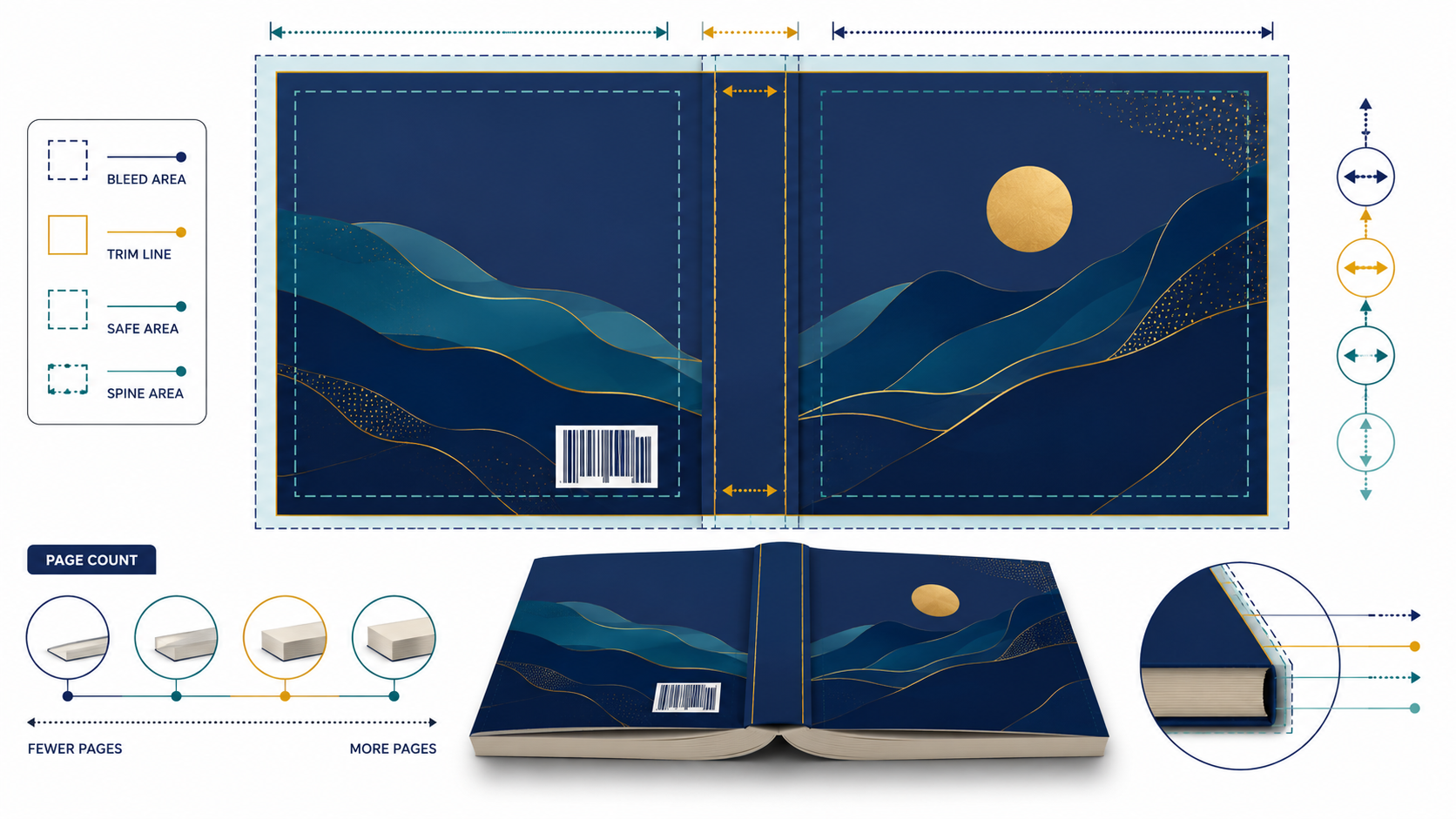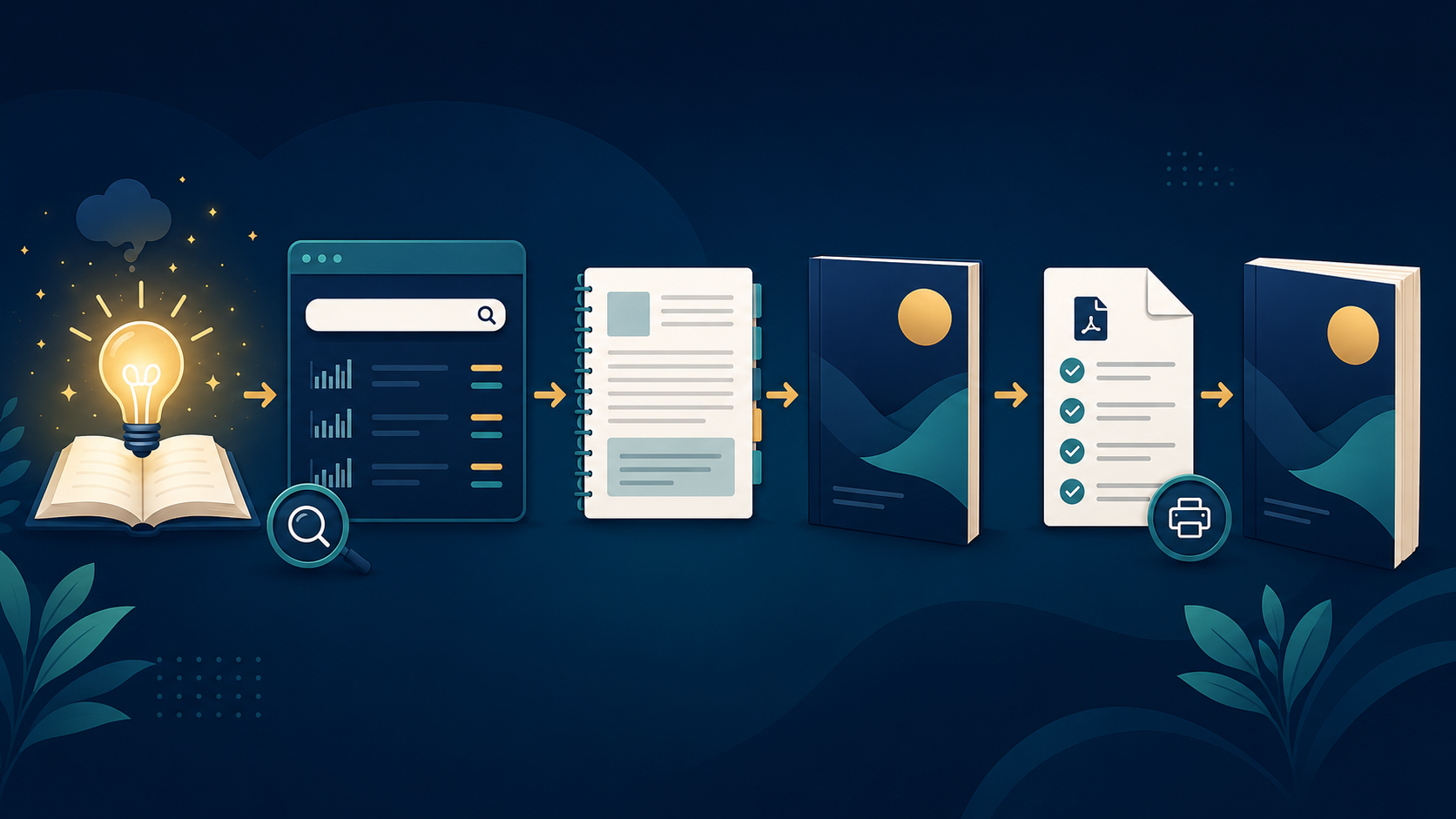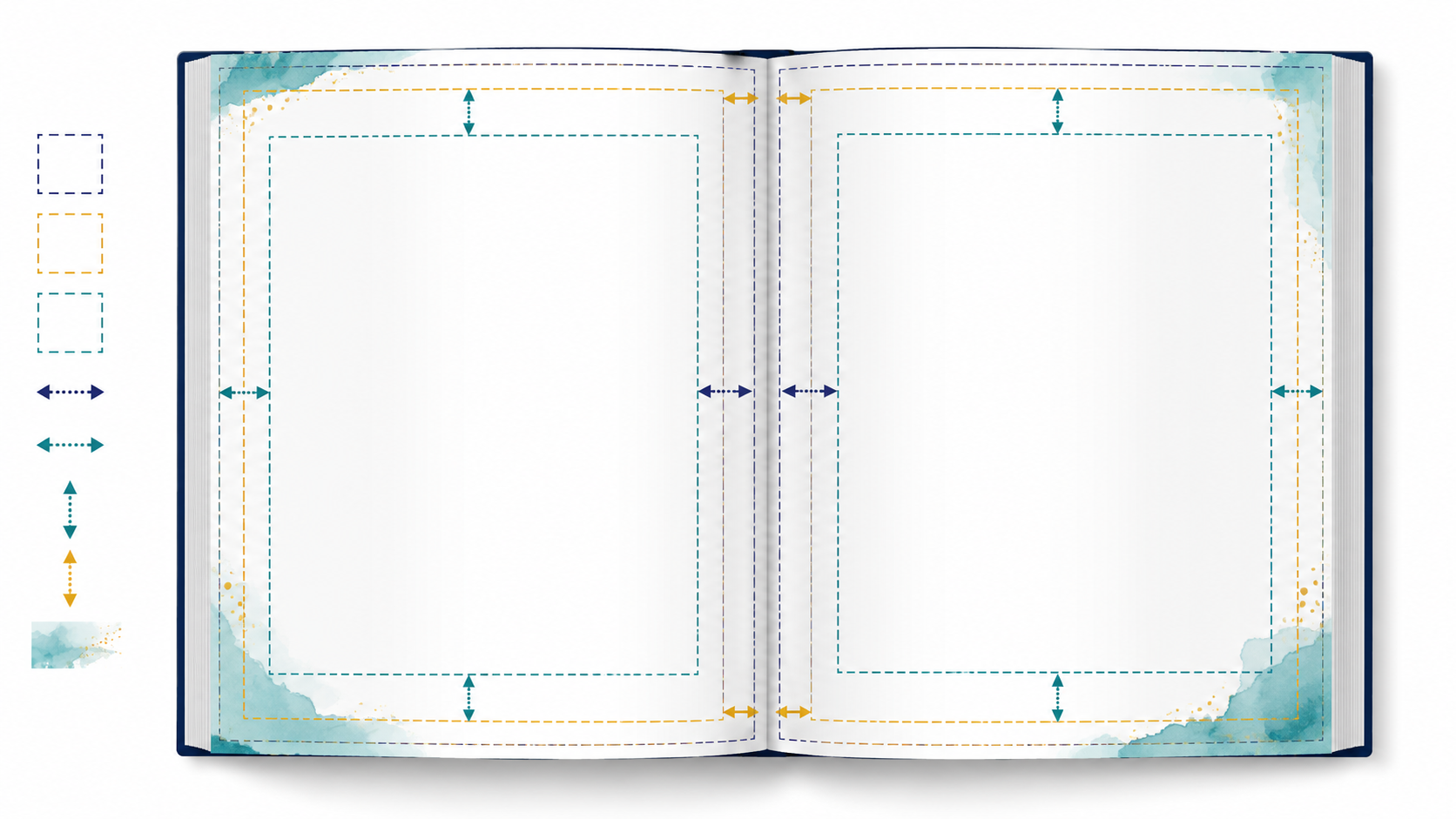
You can create a beautiful book interior and still have it rejected or display formatting warnings when you upload it to Amazon KDP.
The problem is often not the writing or design. It is usually one of four technical settings:
- trim size;
- bleed;
- outside margins;
- inside margin, also called the gutter.
These settings determine the physical dimensions of your printed book and whether text and images remain safe after the pages are trimmed and bound.
In this beginner-friendly guide, you will learn what each term means, how the settings work together and how to prepare a cleaner, more reliable print-ready PDF.
What Is Trim Size?
Trim size is the final width and height of each printed page after the printer cuts away the excess paper.
For example, when someone describes a paperback as a 6 × 9-inch book, they are referring to its trim size. The finished pages will measure approximately six inches wide and nine inches high.
Your chosen trim size affects:
- the appearance and portability of the book;
- the amount of content that fits on each page;
- the final page count;
- printing costs;
- cover dimensions;
- spine width;
- the sizes available for different ink and paper options.
Amazon provides several supported trim sizes for paperback and hardcover books. The best option depends on the type of book you are creating. KDP identifies 6 × 9 inches as the most common paperback trim size in the United States, but that does not mean it is correct for every project.
A text-heavy nonfiction book may work well at 6 × 9 inches, while a workbook, cookbook, puzzle book or illustrated children’s book may benefit from a larger format.
How to Choose the Right Trim Size
Choose the trim size according to how readers will use the book—not simply according to what appears popular.
Text-heavy nonfiction and fiction
Common compact sizes help these books feel comfortable to hold and read. A smaller page may create a higher page count, while a larger page can fit more words but may feel less like a conventional trade paperback.
Children’s books
The ideal size depends on the balance between text and illustration. Picture-heavy books often require wider pages or square formats, while children’s nonfiction books need enough room for headings, facts, illustrations and visual breathing space.
Cookbooks
A larger trim size can provide room for ingredient lists, instructions and photographs without making the pages feel crowded.
Puzzle and activity books
The page must provide enough working space for grids, mazes, handwriting, colouring or cutting activities. A design that works on a computer screen may become frustrating when reduced to a small printed page.
Journals and workbooks
Consider how much space readers need to write. Lines, prompts and answer areas should remain comfortable after margins and binding space are applied.
“Choose the trim size for the reader’s experience first. Then build the interior around it.”
What Is Bleed?
Bleed is the portion of an image, colour or design that extends beyond the final trim edge.
Printing and cutting are not perfectly exact at every point on every copy. If a background image stops precisely at the trim boundary, a small white line may appear at the edge after cutting.
Bleed prevents this by extending the artwork slightly beyond the area that will remain in the finished book.
Your interior needs bleed when any element is intended to reach the edge of the printed page, including:
- full-page photographs;
- coloured page backgrounds;
- decorative shapes touching an edge;
- illustrations that continue beyond the page boundary;
- borders positioned directly at an outer edge.
When visual elements extend to the edge, KDP requires the interior to be prepared with bleed. A manuscript that contains bleed must be uploaded as a PDF.
No Bleed Versus Full Bleed
A no-bleed interior keeps all text, images and decorative elements inside the trimmed page boundaries.
This is often appropriate for:
- novels;
- memoirs;
- standard nonfiction books;
- text-based guides;
- journals with plain white page edges.
A full-bleed interior contains at least one page where artwork, colour or an image reaches an outer edge.
This is common in:
- picture books;
- colouring books;
- cookbooks;
- photography books;
- illustrated educational books;
- activity books with decorative backgrounds.
KDP treats bleed as a setting for the entire uploaded manuscript. Therefore, even if only one page contains edge-to-edge artwork, the complete interior file should be prepared using the required bleed page dimensions.
How Bleed Changes the Document Size
The trim size describes the final printed page. A bleed document must be slightly larger than that trim size.
For KDP interiors, bleed is added to the top, bottom and outside edge. It is not added to the bound inside edge.
KDP currently instructs publishers to add:
- 0.125 inches to the page width; and
- 0.25 inches to the page height.
The extra height represents 0.125 inches at the top and 0.125 inches at the bottom.
For example:
6 × 9-inch trim size
- No-bleed document: 6 × 9 inches
- Bleed document: 6.125 × 9.25 inches
8.5 × 11-inch trim size
- No-bleed document: 8.5 × 11 inches
- Bleed document: 8.625 × 11.25 inches
These dimensions are for each individual interior page—not the full cover spread. KDP’s current trim, bleed and margin guidance explains how document dimensions should be adjusted when artwork reaches the page edge.
What Are Margins?
Margins are the protected spaces between your content and the edges of the page.
They stop text and important visual elements from appearing too close to the cut edge or disappearing into the binding.
Every page has four margin areas:
- top;
- bottom;
- outside;
- inside.
The inside margin is positioned beside the binding and is commonly called the gutter.
Margins should not be confused with bleed.
- Bleed extends background artwork beyond the trim line.
- Margins keep important content safely inside the trim line.
A page can therefore contain both bleed and margins. The background may extend beyond the edge while the title, page number and important illustration details remain safely within the margin area.
What Is the Gutter?
The gutter is the inside margin where the pages meet the spine.
Some of that area becomes difficult to see or use after the book is bound. A thicker book generally needs a larger gutter because more of the page curves toward the spine.
KDP therefore bases its minimum inside-margin requirement on the manuscript’s final page count.
The required gutter increases as the page count rises. This is why you should not finalize the margin settings using only an estimated page count. Complete the interior, determine its final length and then confirm that the inside margin satisfies the relevant requirement.
The gutter alternates sides throughout the book:
- on a right-hand page, it appears on the left;
- on a left-hand page, it appears on the right.
This layout is normally created using facing pages or mirrored margins in your design software.
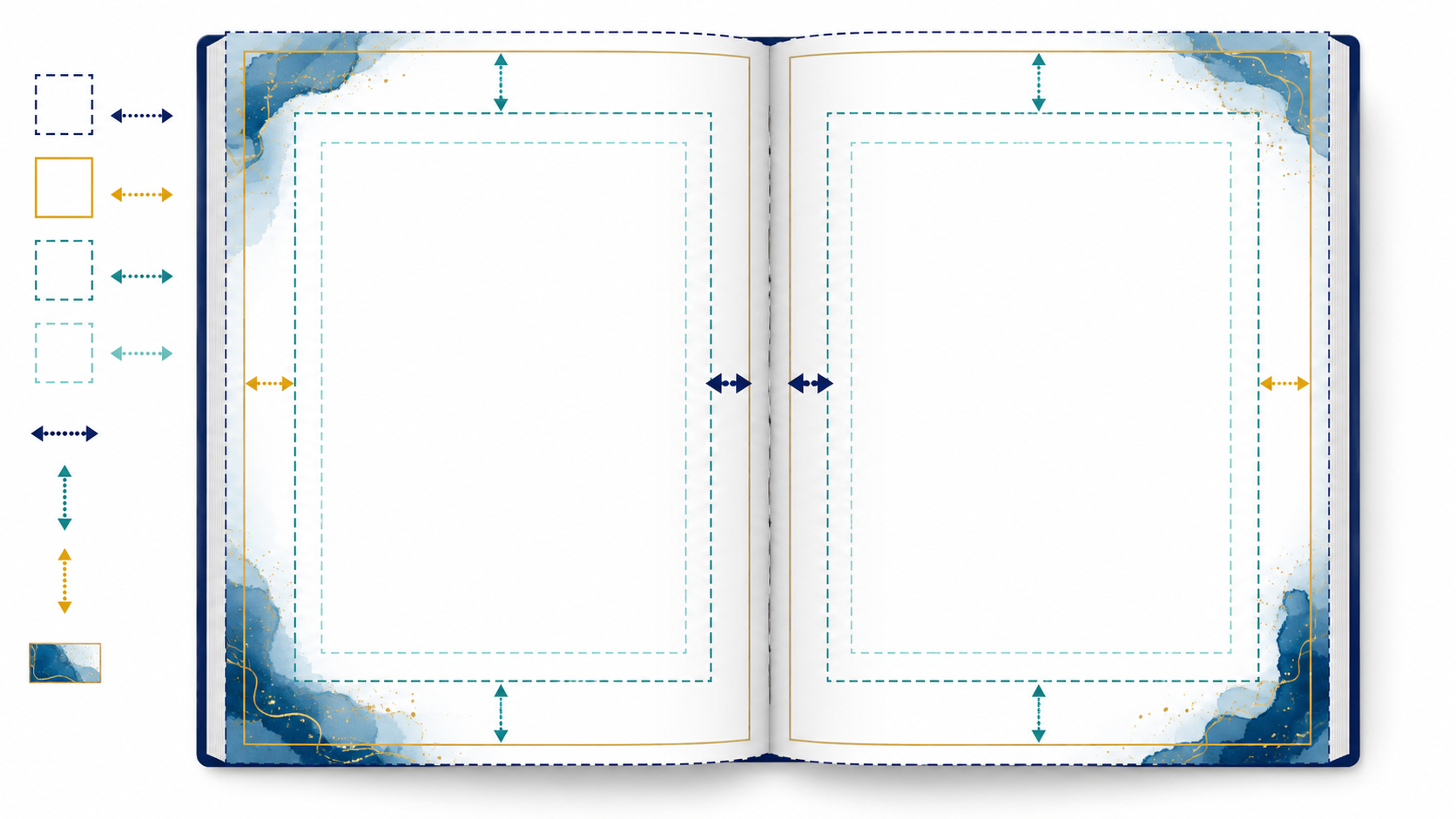
Current KDP Minimum Margin Requirements
KDP currently requires the following minimum inside margins according to page count:
| Page count | Minimum inside margin |
|---|---|
| 24–150 pages | 0.375 inches |
| 151–300 pages | 0.5 inches |
| 301–500 pages | 0.625 inches |
| 501–700 pages | 0.75 inches |
| 701–828 pages | 0.875 inches |
For books without bleed, the minimum top, bottom and outside margins are 0.25 inches.
For books with bleed, the minimum top, bottom and outside margins are 0.375 inches.
These are minimum technical requirements, not always ideal design recommendations.
A paragraph placed only 0.25 inches from an outside edge may technically pass but still feel cramped. Many books benefit from more generous margins based on their content, trim size, typography and intended reader.
Margin Settings for Facing Pages
Printed books normally use facing pages, meaning the pages are designed as left-and-right pairs.
Use these four page-margin terms:
Inside
The edge beside the binding.
Outside
The edge opposite the binding.
Top
The space above the page content.
Bottom
The space below the content, often including the page number or running footer.
Do not apply an identical fixed left margin to every page. If you do, the binding space will appear correctly on odd pages but incorrectly on even pages.
Instead, use mirrored margins, facing pages or inside/outside margins, depending on the terminology used by your software.
Programs such as Affinity Publisher, Adobe InDesign and Microsoft Word can automatically alternate the inside and outside margins.
The Safe Area Is Not the Same as the Margin
The safe area is the region where essential content can be placed without a significant risk of being cut off or hidden.
It should contain elements such as:
- body text;
- headings;
- page numbers;
- captions;
- faces;
- puzzle instructions;
- important parts of illustrations;
- borders that must appear even;
- writing lines and answer boxes.
Background colours and nonessential decorative artwork may extend through the safe area, across the trim line and into the bleed.
Avoid placing thin decorative borders close to the trim edge. Even when they remain within the required margin, minor cutting variation can make one side appear thicker than another.
Common Trim, Bleed and Margin Mistakes
1. Creating the document at trim size when bleed is required
A 6 × 9-inch full-bleed book should not be exported from a document that is only 6 × 9 inches unless the software separately adds the correct bleed during export.
2. Adding bleed to all four sides
For a single KDP interior page, bleed is added to the top, bottom and outside edge—not the inside binding edge.
3. Extending text into the bleed area
Bleed is intended for background artwork, not important content.
4. Using the same left and right margin on every page
This can place the gutter on the wrong side of alternating pages.
5. Choosing the gutter before the final page count is known
The minimum inside margin is determined by the finished page count.
6. Treating minimum margins as ideal margins
A page can technically comply with KDP requirements and still look crowded or uncomfortable.
7. Adding an artificial white border around full-page images
An edge-to-edge image should extend through the bleed instead of stopping before the trim line.
8. Designing the cover before completing the interior
The final interior page count affects spine width and therefore changes the complete cover dimensions. KDP recommends finalizing the manuscript before creating the accurately sized print cover.
How to Check Your Interior Before Uploading
Before exporting the final file, inspect the document at three levels.
Document setup
Confirm that:
- the trim size matches the selected KDP print option;
- the document includes the correct bleed dimensions where required;
- facing pages or mirrored margins are enabled;
- the gutter corresponds to the final page count.
Page design
Confirm that:
- important content remains inside the safe area;
- backgrounds intended to reach an edge extend fully into the bleed;
- page numbers remain consistent;
- images are not accidentally cropped;
- left- and right-hand pages use the correct gutter side.
Exported PDF
Confirm that:
- the PDF page dimensions are correct;
- fonts are embedded;
- images are sufficiently clear;
- no content has shifted during export;
- blank pages appear only where intended;
- the file does not contain printer marks that KDP did not request.
KDP requires a minimum font size of seven points and states that fonts used in an uploaded PDF need to be embedded. However, seven points may still be too small for comfortable reading in many books.
What the KDP Print Previewer Checks
After you upload the manuscript, KDP processes the file and opens it in the Print Previewer.
The previewer can identify issues involving:
- trim size;
- bleed;
- margins;
- content outside permitted boundaries;
- fonts;
- image placement;
- cover dimensions.
Some warnings can be reviewed, but errors that violate printing requirements normally need to be corrected in the original document. You must then export and upload a revised file.
Review every page rather than checking only the pages highlighted by the system. Automated checking may identify technical problems, but it cannot always recognize poor spacing, awkward page breaks, inconsistent headings or design decisions that feel unprofessional.
Audit Your PDF Before Uploading It
Fixing a source document before upload is easier than repeatedly waiting for KDP to process revised files.
The KCanvas KDP PDF Auditor helps you inspect your exported interior before it reaches the KDP previewer. It can support checks involving:
- PDF page dimensions;
- selected trim size;
- bleed setup;
- inside and outside margins;
- content entering unsafe areas;
- image and document consistency.
This gives you an additional quality-control stage between exporting the document and submitting it for publication.
The auditor does not replace your own visual inspection or Amazon’s review process. It helps you find likely technical issues earlier, while you still have the source document open and ready to correct.
KDP Interior Formatting Checklist
Before uploading your manuscript, confirm the following:
- The selected trim size is supported for your print options.
- The design file uses the correct page dimensions.
- Bleed has been added when artwork reaches an edge.
- Bleed is applied to the top, bottom and outside edge.
- Essential content stays inside the safe area.
- Inside margins alternate correctly between left and right pages.
- The gutter is suitable for the final page count.
- Top, bottom and outside margins meet the minimum requirements.
- Decorative borders are not positioned dangerously close to the trim line.
- Page numbers and running headers are consistent.
- The PDF has the expected total number of pages.
- Fonts are embedded.
- Images remain clear in the exported PDF.
- The final PDF has been inspected before upload.
- Every page has been reviewed in the KDP Print Previewer.
Final Thoughts
Trim size, bleed and margins are easier to understand when you see them as parts of one print-production system.
The trim size defines the finished page. Bleed allows background artwork to continue safely beyond the cut edge. Margins protect readable and important content. The gutter provides additional room beside the binding.
Set these measurements before you begin the main page design. Then confirm them again after the manuscript reaches its final page count.
A correctly prepared file does more than avoid an upload error. It creates a book that feels balanced, readable and professionally constructed when the reader finally holds it.
Preparing a book for KDP? Run your exported interior through the KCanvas KDP PDF Auditor before uploading it.